Technical SEO: Core Web Vitals, Schema Markup and What Google Actually Measures
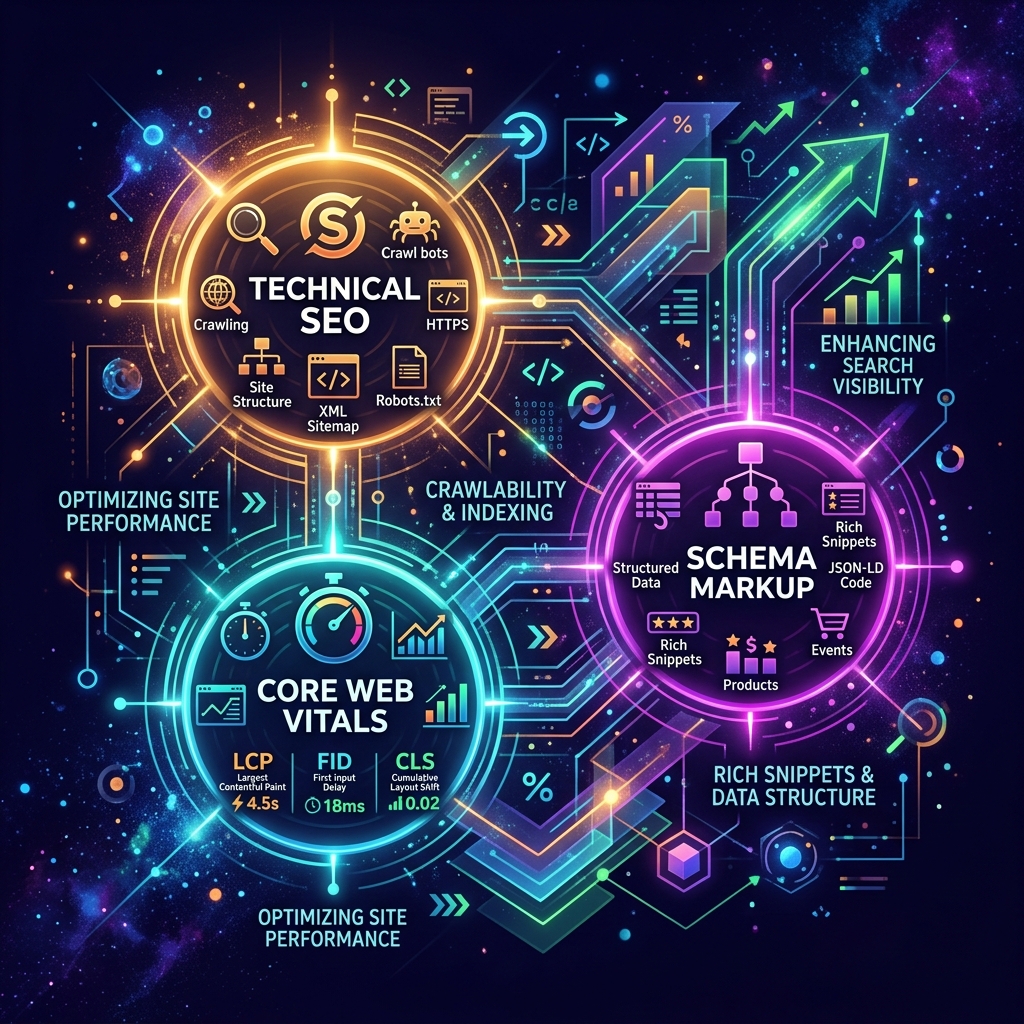
Content wins the war. Technical SEO is the table stakes. Here's the full technical checklist with the reasoning behind each item.
Technical SEO is the part of search optimisation that has nothing to do with keywords or links. It's about whether Google can find, crawl, render, and understand your pages — and whether your site meets the basic quality signals that Google uses as minimum requirements.
Content and links are what win competitive rankings. Technical SEO is what ensures your content and links aren't being wasted on a site that Google can't properly index or that fails basic quality thresholds.
Here is the full technical picture, with the reasoning behind each item.
Crawling and Indexability
Before any content can rank, Google has to be able to find and index it.
robots.txt: This file tells search engine bots which parts of your site they're allowed to crawl. A misconfigured robots.txt that blocks Googlebot from crawling your entire site is a catastrophic error that's more common than you'd expect (particularly after a site migration from a staging environment where crawling was intentionally blocked).
Check: visit yoursite.com/robots.txt. Verify that it doesn't block / (your entire site) and that it doesn't block paths where your important content lives.
XML sitemap: A sitemap tells Google which pages you want indexed and when they were last updated. Submit it through Google Search Console. Not having a sitemap doesn't prevent indexing (Google can crawl links to find pages) but it's standard practice and helps with large sites.
Google Search Console: The most important technical SEO tool available to you, and it's free. The Index Coverage report shows which pages are indexed, which are excluded, and why. Check it regularly. Common issues:
- "Crawled but not currently indexed" — Google visited but decided not to index (often thin content)
- "Discovered but not yet crawled" — in the queue
- "Noindex" tags blocking pages you want indexed
- "Blocked by robots.txt" — crawling is being prevented
Canonical tags: If the same content is accessible at multiple URLs (with and without trailing slash, HTTP vs HTTPS, www vs non-www, with URL parameters), Google may see them as duplicate pages and split link equity between them. Canonical tags tell Google which version is the primary one.
HTTPS
If you're still serving any pages over HTTP in 2022, this is priority one. HTTPS has been a ranking signal since 2014. Browsers now display "Not Secure" warnings for HTTP pages. Let's Encrypt provides free TLS certificates and there's no valid reason to be on HTTP for a public-facing site.
Page Speed and Core Web Vitals
Google incorporated Core Web Vitals into its ranking algorithm in June 2021. The three metrics:
LCP — Largest Contentful Paint
Measures how long until the largest visible element (hero image, main heading, large block of text) is rendered. Target: under 2.5 seconds.
What causes slow LCP:
- Large images that aren't compressed or served in modern formats (WebP, AVIF)
- Slow server response time (Time to First Byte above 600ms)
- Render-blocking CSS and JavaScript that delay the browser from painting
- No CDN (content delivery network) for static assets
Fixes:
- Compress and convert images to WebP. Use
<picture>elements with WebP and JPEG fallbacks. - Add
loading="lazy"to images below the fold (but NOT to the hero/LCP image — lazy loading the LCP image makes it slower) - Use a CDN for static files (Cloudflare's free tier works well)
- Preload your LCP image:
<link rel="preload" as="image" href="hero.webp"> - Move non-critical CSS and JavaScript to defer or async loading
FID — First Input Delay (replacing with INP in 2024)
Measures delay between user's first interaction (click, tap) and browser's response. Target: under 100ms.
What causes high FID:
- Heavy JavaScript executing on the main thread during page load
- Long tasks (JavaScript operations exceeding 50ms that block the thread)
- Third-party scripts (analytics, chat widgets, marketing tags) that compete for main thread time
Fixes:
- Code-split JavaScript — only load what's needed for the current page
- Defer non-critical third-party scripts
- Use a tag manager and audit which tags are actually needed
CLS — Cumulative Layout Shift
Measures unexpected visual shifts in page content as it loads. Target: under 0.1. The dreaded experience where you're about to click a button and an ad loads above it and you click the wrong thing.
What causes high CLS:
- Images without explicit
widthandheightattributes (browser doesn't know how much space to reserve) - Ads, embeds, or iframes with no reserved space
- Web fonts that cause text to reflow when they load (FOIT/FOUT)
- Dynamically injected banners, cookie consent bars, or CTAs that push content down
Fixes:
- Always set
widthandheighton images. With CSSheight: auto, this lets the browser calculate aspect ratio and reserve space. - Reserve space for ad slots with
min-height - Use
font-display: optionalor preload web fonts to prevent layout shift on font load
Measuring Core Web Vitals
Field data (real user experience): Google Search Console → Experience → Core Web Vitals. This shows real data from Chrome users visiting your site. The only data Google uses for ranking.
Lab data (simulated): PageSpeed Insights, Lighthouse (in Chrome DevTools), WebPageTest. Useful for diagnostics and development but doesn't directly reflect ranking impact.
A site can have good lab scores but poor field scores if, for example, your user base is on slow mobile connections in areas not well-covered by your CDN.
Schema Markup (Structured Data)
Schema markup is JSON-LD code embedded in your pages that tells Google explicitly what type of content a page contains and what the key entities are. Google uses it to display rich results in search (star ratings, FAQ dropdowns, event dates, recipe information, etc.).
Schema doesn't directly improve rankings for standard results. It improves click-through rates by making your result in SERP more visually prominent and informative. And for some content types (recipes, events, products, FAQs), it can unlock rich result formats that only appear if you have appropriate schema.
The most broadly useful schema types:
Organization / Person: For your site's identity — who you are, what you do, your social profiles. Used for the knowledge panel Google sometimes shows for branded searches.
{
  "@context": "https://schema.org",
  "@type": "Organization",
  "name": "Company Name",
  "url": "https://example.com",
  "logo": "https://example.com/logo.png",
  "sameAs": [
    "https://twitter.com/yourhandle",
    "https://linkedin.com/company/yourcompany"
  ]
}
Article / BlogPosting: For content pieces. Tells Google the title, author, publication date, and the content is an article.
BreadcrumbList: Tells Google the hierarchy of the current page within your site. Displays as breadcrumbs in search results, improving the visual appearance of your result.
FAQPage: If a page has explicit Q&A content, FAQ schema can cause the questions and answers to display directly in search results as expandable dropdowns. High CTR impact when it appears.
Product: For e-commerce product pages — name, price, availability, reviews. Enables rich product results.
LocalBusiness: For businesses with a physical location — address, opening hours, phone number.
Validate schema using Google's Rich Results Test tool and Schema Markup Validator. Common mistakes: missing required properties, incorrect @type values, JSON syntax errors.
Mobile Usability
Google uses mobile-first indexing — it primarily uses the mobile version of your site for ranking, even for desktop searches. Issues:
- Text too small to read on mobile (under 12px)
- Clickable elements too close together (under 48px spacing between tappable targets)
- Content wider than the screen (horizontal scroll)
- Interstitials or popups that cover content immediately on mobile
Check in Google Search Console → Experience → Mobile Usability. Fix every issue listed.
Internal Linking
Internal links serve two functions: they help users navigate and they help distribute PageRank (link authority) through your site.
Orphan pages — pages with no internal links pointing to them — are difficult for Google to discover and receive no internal PageRank. Make sure every important page has at least a few internal links from other relevant pages.
Use descriptive anchor text for internal links. "Click here" tells Google nothing. "Technical SEO checklist" tells Google what the linked page is about.
The Priority Order
If you're doing a technical audit, address in this order:
- HTTPS
- Crawlability (robots.txt, Google Search Console coverage)
- Mobile usability
- Core Web Vitals (LCP first, then CLS, then FID)
- Canonical tags and duplicate content
- XML sitemap
- Internal linking audit
- Schema markup
- Page-level technical issues (broken links, redirect chains)
Technical SEO is rarely the primary reason a site doesn't rank. But technical issues are silent problems — they don't announce themselves. A site that's been blocking Googlebot by accident for three months doesn't drop in rankings visibly, because it was never ranking in the first place. Regular audits and Search Console monitoring prevent these invisible blockers from wasting your content and link investment.